
Word (.docx) and Excel (.xlsx) files open in an editor inside StruXure, so you can make a change without downloading the file and uploading it again. Each save is kept as a new version.
Start a new document
- Open the folder the document belongs in.
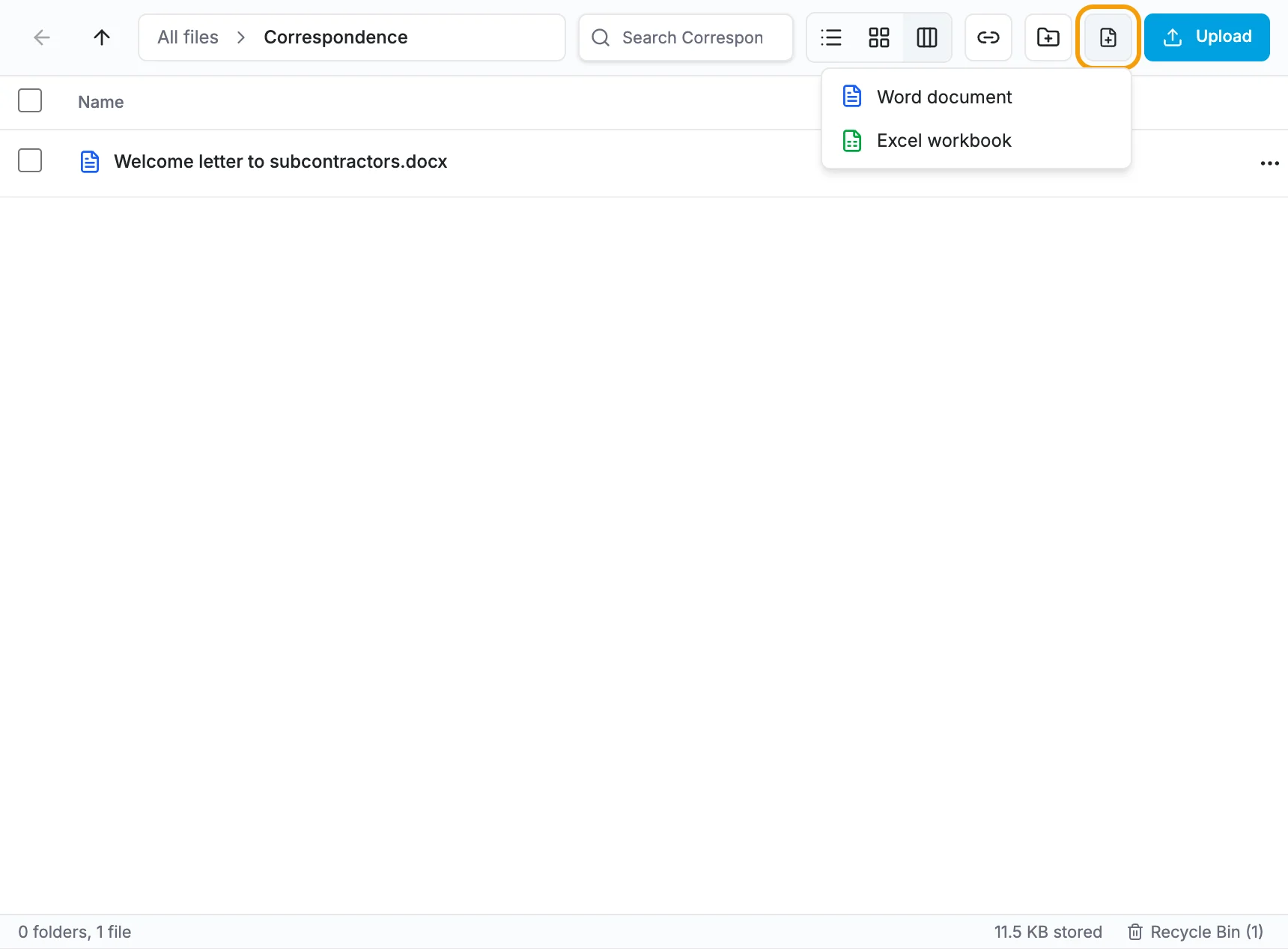
- Click New document in the toolbar and choose Word document or Excel workbook. You can also right-click empty space in the list and choose New Word Document or New Excel Workbook.
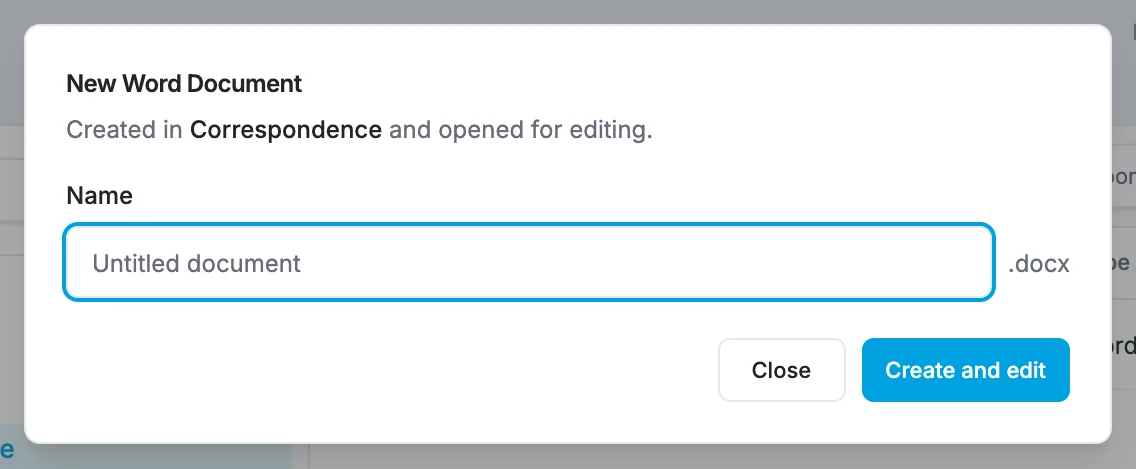
- Type a Name. The extension (.docx or .xlsx) is added for you.
- Click Create and edit. The blank document is filed in the folder and opens in the editor.
Edit a Word or Excel file
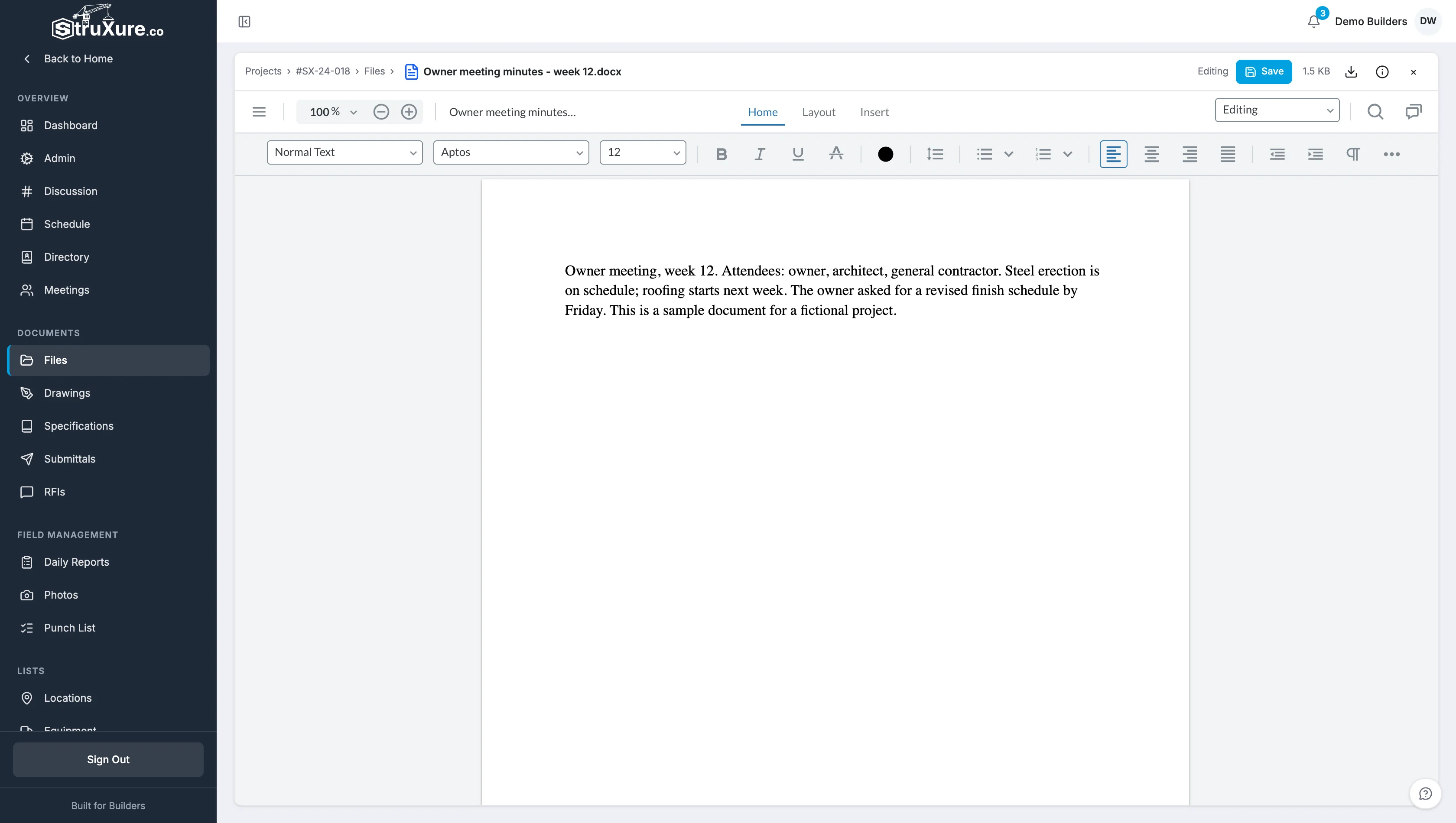
- Open the file. The bar above the document, beside the file's name, says Starting editor…, then Opening document…, then Editing.
- Make your changes. The editor has its own toolbar for text styles, fonts, lists and alignment (for Word) or cells and number formats (for Excel).
- Click Save, next to Editing. When it's done, it says Saved as version and the new version number.
Each save becomes the current version, and the version before it is kept. See Previous versions.
If the save fails, the bar says why, for example The document was not saved. Check the connection and try again. Your changes are still in the editor, so you can click Save again.
What can and can't be edited
| File | In StruXure |
|---|---|
| Word documents (.docx) and Excel workbooks (.xlsx) | Edit and save, with write access. |
| Older Word and Excel files (.doc, .xls), macro-enabled files, templates, CSV and PowerPoint | View only. |
| Any file, with read access only | View only. The bar says Read only. |
Occasionally a Word document uses something the editor can't handle. The line then says This document can't be edited in the browser. Download it to edit in Word, then upload it again. You can still read it.